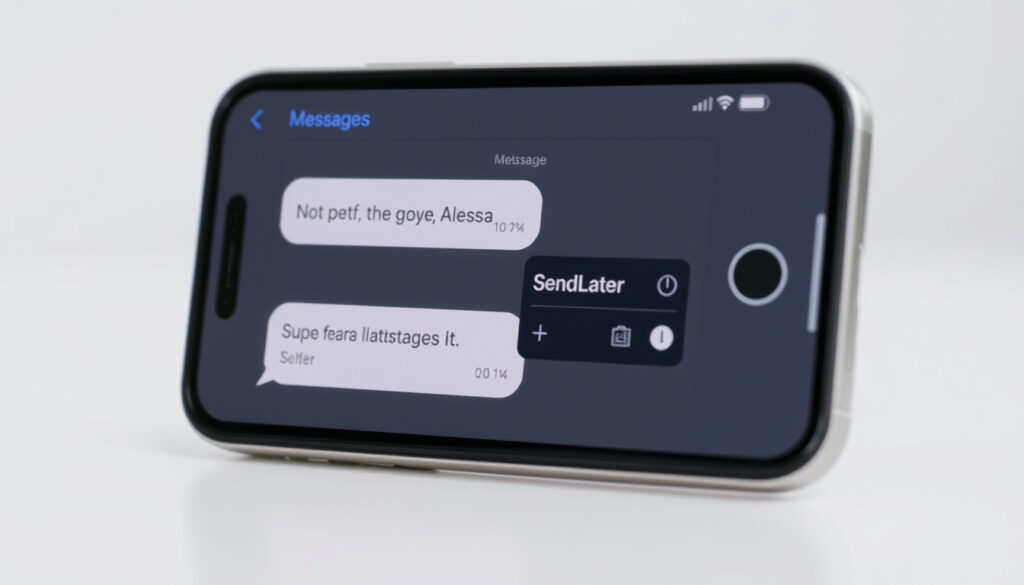
How to Schedule a Text on iPhone: Send Later Guide
iOS 18 brought a feature iPhone users had been waiting years for: native message scheduling built directly into the Messages app. No third-party apps, no complicated Shortcuts setup — just tap, set your time, and go. The feature works for iMessage conversations, but it won’t show up when you’re texting Android users or anyone else on SMS. As with any new feature, there’s a learning curve, and many users are hitting a wall when the Send Later option simply doesn’t appear.
Required iOS Version: iOS 18 or later ·
Maximum Schedule Time: 14 days ·
App Used: Messages ·
Feature Name: Send Later ·
Works With: iMessage and SMS
Quick snapshot
- Send Later requires iOS 18 or later (Apple Support)
- Messages schedule up to 14 days ahead (Bubblyphone)
- Scheduled texts send even if iPhone is off (Bubblyphone)
- Exact model support below iPhone 13 (Apple Discussions)
- Android recipient behavior when receiving scheduled iMessages (Apple Discussions)
- iOS 18 released September 2024 with native Send Later (Bubblyphone)
- Pre-iOS 18 relied on Shortcuts automation (Bubblyphone)
- Edit or delete scheduled messages before send time
- Cross-platform scheduling may expand in future iOS updates
These specifications define how Apple’s built-in scheduling tool operates across devices.
| Specification | Value |
|---|---|
| Feature Introduced | iOS 18 |
| Max Future Date | 14 days |
| Supported Devices | iPhone XS and later |
| App Location | Messages compose screen |
| Default Scheduled Time | Tomorrow 9:00 AM |
| Cross-Platform Support | iMessage only (no SMS/Android) |
| Offline Sending | Yes (Apple server-stored) |
| Pre-iOS 18 Alternative | Shortcuts app |
Can you schedule a text message on an iPhone?
Yes — but only if you’re running iOS 18 or later. Apple introduced the Send Later feature in September 2024, marking the first time the Messages app includes native scheduling without requiring third-party tools or workarounds.
You can schedule a message up to 14 days into the future, according to Apple’s official documentation.
Requirements for Send Later
- iOS 18 or later (check via Settings → General → About)
- iMessage enabled for iPhone-to-iPhone communication
- Active internet connection (Wi-Fi or cellular)
- Recipient must use iOS 18, iPadOS 18, macOS Sequoia, watchOS 11, or visionOS 2
The feature works across the Apple ecosystem, but it only appears when you’re messaging another Apple device using iMessage (shown as blue bubbles). As soon as you add an Android user or enable SMS, Send Later vanishes from the menu.
Limitations like 14-day max
The 14-day ceiling is hardcoded — you can’t schedule farther out, even if you try. The default suggestion is “Tomorrow 9:00 AM,” which you can tap to adjust within that two-week window.
The catch is that Android users are completely left out of this feature—no workaround exists within iOS itself for cross-platform scheduling.
How do I send a text on an iPhone at a later time?
The process takes about 30 seconds once you know where to look. Here’s the exact sequence from Apple’s official guide.
Step-by-step to use Send Later
- Open the Messages app
- Tap the compose button (+) to start a new message or open an existing conversation
- Type your message in the text field
- Tap the “Send Later” button (it appears near the send arrow after you type)
- Choose your desired date and time using the picker
- Tap the blue Send button to schedule
Scheduled messages appear in your conversation with a dashed blue border and the scheduled send time displayed on the bubble. Touch and hold that bubble anytime before delivery to edit the text, change the time, send immediately, or delete it entirely.
Scheduling to iPhone or Android
- iPhone recipients (iMessage): Send Later appears as an option after typing a message
- Android or SMS recipients: Send Later option disappears — you’ll need to use a third-party scheduling app or the Shortcuts app workaround
If you’re trying to schedule a birthday message for a friend on Android, the native feature won’t work. Apple’s iMessage-only restriction means SMS/MMS users are left out entirely.
Where is the send later button on my iPhone?
The Send Later button hides in plain sight — but only under specific conditions. Most users miss it because they expect it in a menu or toolbar, when it actually appears as a label above the send arrow after you type a message.
Locating in Messages app
- The button only shows up once you’ve typed something in the message field
- Look for the “Send Later” label positioned just left of or above the blue send arrow
- On iOS 18, it replaces the normal send action when tapped before you commit to immediate delivery
For new and existing threads
Whether you’re starting a fresh conversation or replying to an existing one, the Send Later button follows the same logic: type first, then the option appears. It won’t show in an empty compose window.
If you’re not seeing the button at all, the conversation is likely set to SMS/MMS mode. Send Later requires iMessage to be active for both parties.
Why is my send later not there?
This is the single most common complaint about iOS 18 scheduling. The feature exists, but many users open Messages and find no trace of it. Here’s what typically causes it to disappear.
Update iOS check
The most straightforward fix: confirm you’re actually running iOS 18. Go to Settings → General → About and check the iOS Version line. If it says 17 or earlier, Send Later simply isn’t there. Update via Settings → General → Software Update.
Region or beta issues
Some beta testers reported the button missing until they installed the latest public build. Regional variations haven’t been officially documented, but Apple’s support page notes availability tied to iOS version and iMessage status worldwide.
Send Later Not Appearing in Messages App? Here’s What to Do
When the troubleshooting basics don’t work, deeper fixes come into play. Based on documented user reports and Apple support threads, here’s a step-by-step escalation path.
Force quit and restart
- Swipe up from the home bar (or double-press on older iPhones) to reveal app switcher
- Swipe Messages app off the screen
- Reopen Messages and try scheduling again
Check device model compatibility
Apple officially supports iPhone XS and later for Send Later, though users with older devices have reported mixed results. If your iPhone predates XS, the feature may not function reliably even after an iOS 18 update.
iOS version mismatch
- Verify both sender and recipient are on compatible OS versions
- For iPhone-to-Mac scheduling, the Mac must run macOS Sequoia
- Check Settings → Messages → iMessage for proper sign-in status
Account settings
Apple’s official guidance states that signing out of your Apple ID in Messages and signing back in can refresh iMessage registration. Navigate to Settings → Messages → iMessage and toggle it off, wait 30 seconds, then toggle it back on.
Scheduled messages send even if your iPhone is off, because they’re stored on Apple servers rather than waiting on your device. This is genuinely useful — but it means the feature only works as long as Apple’s iMessage infrastructure is operational.
How to schedule a text on iPhone to Android
Here’s the uncomfortable truth: iOS 18’s native Send Later doesn’t work with Android recipients. The moment you switch to SMS/MMS mode (typically when texting a non-Apple device), the button disappears entirely.
Cross-platform workarounds
- Shortcuts app (iOS 17 and earlier): Apple never built native scheduling before iOS 18, so the community created automations. These still work but require the Shortcuts app and sometimes the “Ask Before Running” permission.
- Third-party SMS schedulers: Apps like ScheduledSMS, Textra, or Pulse SMS offer Android-compatible scheduling, but they replace your default messaging app.
- Server-based scheduling: Some carriers offer network-level SMS scheduling through their apps — check with your provider.
The implication: if you’re trying to schedule a message for someone on Android, Apple’s native tool won’t help you. You’ll need to either switch messaging apps entirely or use a carrier-backed solution.
Full process on iOS 18
- Confirm iMessage is active for your end (Settings → Messages → iMessage)
- Ensure the recipient uses an Apple device with iOS 18 or later
- Open Messages, tap compose (+), type your message
- Tap “Send Later,” select date/time, tap send
Edit scheduled messages
To modify a scheduled message before it sends: open the conversation, tap the scheduled message bubble, then choose Edit Time, Edit Message, Send Now, or Delete. Touch and hold also works from the main chat view.
“With iOS 18, Apple finally added native message scheduling to the Messages app.”
— Bubblyphone (Tech Guide Author)
“The iMessage send later feature is only available for iOS devices.”
— Apple Support Rep (Apple Discussions Moderator)
“Send Later does not appear as an option unless I am texting another iPhone user.”
— Apple Discussions Contributor
Related reading: How to Unlock iPhone – Passcode, Carrier Unlock 2025 · iPhone SE 1st Generation to Buy – Prices, Sites and Guide 2025
youtube.com, youtube.com, youtube.com, discussions.apple.com, hexnode.com
Related coverage: RCS features in iOS 18 fördjupar bilden av What Is RCS on iPhone – iOS 18 Features Guide.
Frequently asked questions
Can you schedule a text message on an iPhone?
Yes, if you’re running iOS 18 or later. The feature is built into the Messages app under the name “Send Later” and allows scheduling up to 14 days in advance.
Why can’t I schedule iMessages?
The most likely reasons are: you’re on iOS 17 or earlier, iMessage is disabled, you’re texting an Android user (SMS mode), or you haven’t typed a message yet (the button only appears after you start typing).
How to activate send later on iPhone?
Open Messages → tap compose (+) → type your message → tap “Send Later” (near the send arrow) → select date and time → tap the blue Send button. The feature requires iOS 18 and an active iMessage conversation.
Why can’t I schedule a text on my iPhone?
Common causes include running an iOS version below 18, texting a non-iMessage contact, being on an older iPhone model with limited compatibility, or having Focus mode enabled that restricts Messages. Try updating iOS, enabling iMessage, or force-quitting and reopening the app.
“Send Later” option not appearing in Message app iOS 18
First, verify your iOS version (Settings → General → About). If it’s 18+, check that iMessage is turned on (Settings → Messages → iMessage). The button only shows after you type a message — it won’t appear in an empty compose window. As a last resort, reset Messages settings to defaults.
How to schedule a text on iPhone to Android
You can’t — at least not with iOS 18’s native Send Later. The feature only works for iMessage conversations (blue bubbles). For Android recipients, you’ll need a third-party SMS scheduling app or a carrier-backed solution.
How to schedule a text on iPhone 14
iPhone 14 fully supports iOS 18, so the process is the same as other supported models: update to iOS 18, open Messages, start a conversation, type a message, tap Send Later, pick a time, and send. The 14-day maximum applies.
How to schedule a text on iPhone iOS 17
iOS 17 doesn’t have native Send Later. Instead, you can use the Shortcuts app to create an automation that schedules texts, though it requires your iPhone to be on and connected at the scheduled time. Upgrade to iOS 18 for the built-in solution.
More related posts
 How to Reduce Monthly Expenses: Proven Methods and Budgeting Tips
 Gold Bracelets for Women: 2026 Trends & Styles Guide
 Air Fryer Brussel Sprouts – Crispy in 15-20 Minutes
 Netflix 24 Hour Customer Service Number – Official Guide & Chat Options
 Pirates vs Cardinals Player Stats: Live Game Recap & Box Score
 Forrie J. Smith: Real Cowboy and Yellowstone Star
 Carrie-Anne Moss: Biography, Family, Career & Facts
 Normal Socket After Tooth Extraction vs Dry Socket: Healing & Red Flags